Draft workflow
Being able to control the lifecycle of data creation within the platform is essential. This is why draft workflows were introduced.
Key features of draft workflow
Contrary to the workflow used on entities, the draft workflow allows administrators to control each step of data production within a draft by:
- Enforcing status order: a status cannot be skipped, except when the workflow is designed to allow it (Community Edition).
- Restricting who can transition: you can define that only a specific subset of users can move a draft to a given step, allowing only managers, for example, to approve a draft (Enterprise Edition feature).
- Applying actions on transitions: when moving to a specific status, you can trigger automated actions controlled by the workflow engine, such as Apply Authorized Members, Remove Authorized Members, Share draft to organizations, Enter a comment, and Validate Draft. This is an Enterprise Edition feature.
- Applying actions on statuses: you can decide whether an action should run when entering or exiting a status. Available actions include Apply Authorized Members and Remove Authorized Members. This is an Enterprise Edition feature.
The overall goal of the draft workflow is to control who can do what, when, and on which draft instance so that only qualified data is ingested into the platform.
Main concepts
- A workflow definition: the root of your workflow.
- A workflow instance: once a workflow definition has been created, a specific instance of that definition is created for each draft. The workflow instance is the application of the workflow definition to a given draft.
- A status template: an existing OpenCTI concept that you can define in Taxonomy and reuse to create statuses across multiple entities. The goal is to ensure consistent naming conventions across entities.
- A status: an instance of a status template for a specific entity type. For example, you can define the status template "New", and the Report entity can use the status "New", which is an instantiation of the template.
- A transition: a concept introduced by the workflow engine that links statuses. You can move from status A to status B only if a transition between them exists.
- A workflow action: an action triggered by the workflow itself, either on a transition or on a status.
Workflow definition
By default, draft workflow is disabled on all platforms. If nothing is changed, the platform continues to work as it does today.
To enable it, go to Settings > Entity customization and select the Draft entity. You will then land on the tab used to define a workflow.
A single workflow definition applies to all drafts on the platform: you cannot define multiple workflows based on specific draft values.
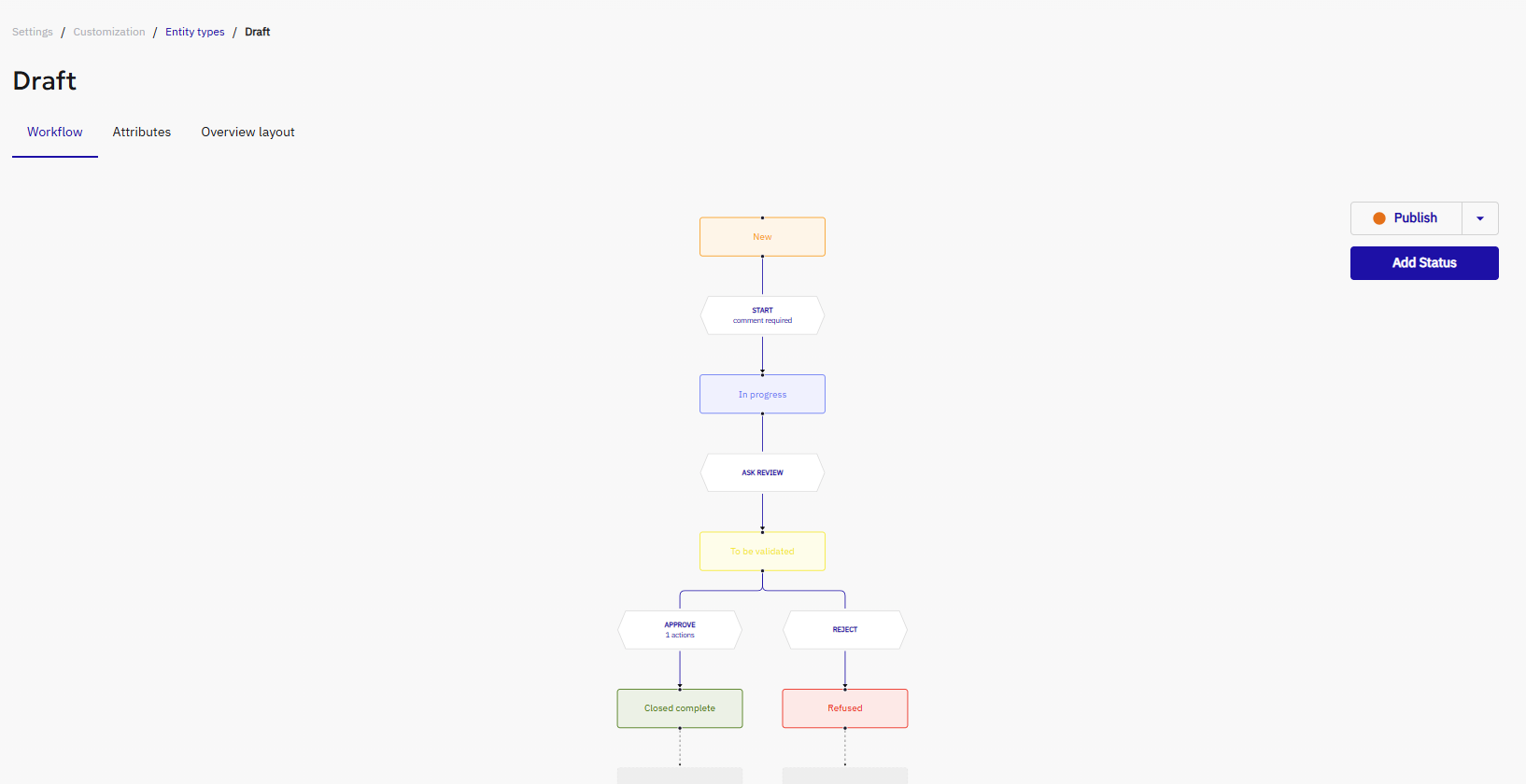
Creating and applying a workflow definition
Add as many statuses and transitions as needed within your workflow definition. Any change you make is saved automatically.
Add statuses
To create a workflow definition, add a status by clicking the dark square or by using the Add status action.
Once your first status is added, you can click the dark box to add a follow-up status. This does two things:
- Adds the status to your workflow definition
- Creates a transition between the two statuses
If you add a status by clicking the Add Status button, the status is added as idle and is not linked to any other status via a transition.
Add transition
If you have added multiple statuses and want to create a new transition between them, simply drag an arrow from the status you want the transition to start from to the status you want it to end at.
Publish a workflow definition
Once you have finalized your workflow definition, you can publish it so that all drafts (existing and new) use the new workflow definition. To do this, click Publish.
Publish can have three states:
- Orange: you have made changes to the workflow that have not yet been published.
- Green: all changes have been published, and drafts are using the new workflow definition.
- Red: your workflow definition cannot be published because it contains issues.
Rules required to publish a workflow
Workflow validation rules
To work correctly—and therefore to be able to publish a workflow—you must respect the following rules:
- The workflow must have a single starting point: it cannot have two starting statuses.
- A status cannot be idle: every status in the definition must have at least one transition to or from it.
- A transition must have both a source and a target status.
- Each transition name must be unique.
- You cannot publish a workflow that does not contain a status currently used by a workflow instance. To resolve this, filter the relevant status in your draft list and apply a transition to all drafts so they no longer use that status.
- You must have at least one Validate Draft action enabled. A draft must be able to be validated.
Rules related to workflow
To maintain data consistency, some safeguards are in place to preserve workflow integrity. Specifically:
- You cannot delete a status template that is used in a workflow. First, make sure no workflow instance is using the status, then remove the status from the workflow definition before deleting the status template.
Actions on transitions, statuses, and conditions
Enterprise edition
Workflow actions and conditions are available in the OpenCTI Enterprise Edition. Please read the dedicated page for full details.
Transitions
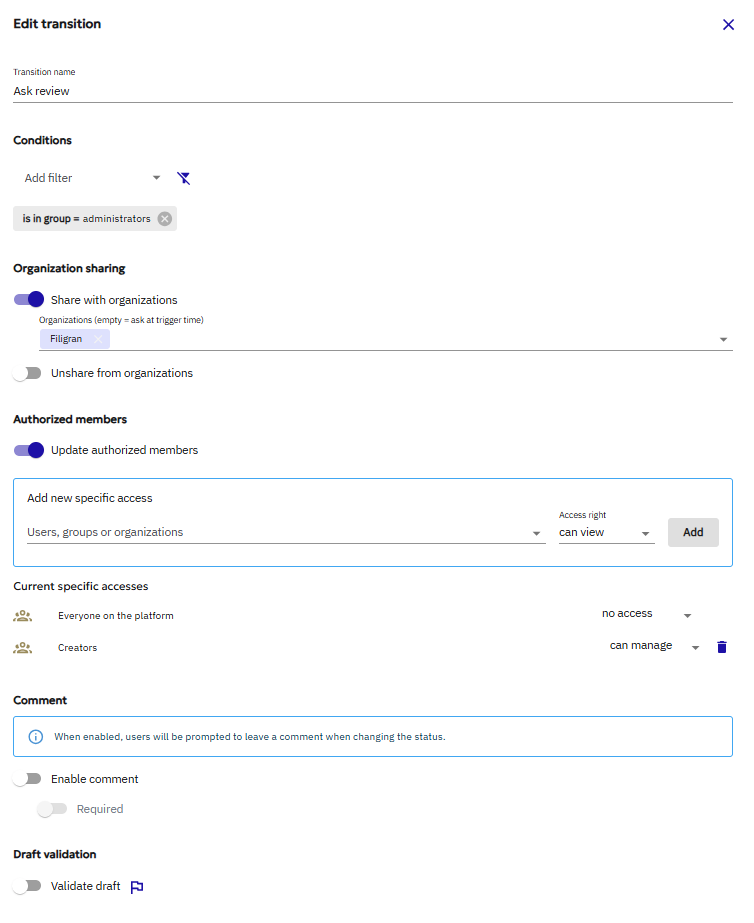
Conditions on transitions
You can define conditions on a transition so that the transition is only visible to, and can only be triggered by, users or data that match the configured criteria.
Criteria you can set include:
- Draft name: based on whether the draft name is empty, contains certain text, and so on.
- Belonging to a group or organization: whether the user belongs to a specific group or organization.
- User is: whether the transition is limited to a specific user.
If the user or the data does not match the condition, the transition will not be visible in the UI and cannot be triggered.
Authorized Members and conditions are different: a user may be able to view a draft but still not be allowed to move it forward unless they match the transition conditions.
Actions on transitions
Organization sharing
Share with organizations
When transitioning, you may need to share the entire draft with one or more organizations. Since entities within a draft are affected by organization segregation, a user from another organization might not be able to see the data even if they have access to the draft.
Simply enable the Share with organizations toggle. From there, you have two options:
- Specify the organizations that should receive all entities and relations in the draft. When the transition is executed, those entities and relations will be shared with the selected organizations.
- Leave the field empty. In that case, users will be able to select one or more organizations to share the draft with, although this will not be mandatory.
Unshare from organizations
Using the same mechanism, you can also enable the option to Unshare from organizations.
Authorized Members
When transitioning, you can update Authorized Members. This is useful when you want to control draft visibility or who can act on the draft at a specific stage.
Applying Authorized Members does not add new members; instead, it replaces the existing ones. Some options in this component provide additional flexibility:
- Draft author (org): select the draft author. If the author is an organization, you can also select the relevant group intersection.
- Draft creator
- Assignee
- Participant
Authorized Members are applied directly at the draft level when the transition is triggered.
Comment
When transitioning, you may need to explain why the draft is being moved to a specific status, for example when rejecting it.
This is the purpose of the comment option.
You can enable this option and even make it mandatory. As a result, when transitioning to a new status, the user will be prompted to enter a comment before the transition can be triggered.
The comment is visible to any user who has access to the draft, as long as the draft remains in the corresponding status.
For example, if you have a status called "Pending", a transition called "Reject", a status called "Rejected", and another transition from "Rejected" back to "Pending" called "Back to in progress", the comment entered on the "Reject" transition will remain visible on the "Rejected" status. If you later move the draft back to "Pending" and then to "Rejected" again without adding a new comment, the previous comment will still be visible.
Validate draft
This action is needed to publish your workflow. When enabled, it triggers the draft ingestion process.
Actions on status
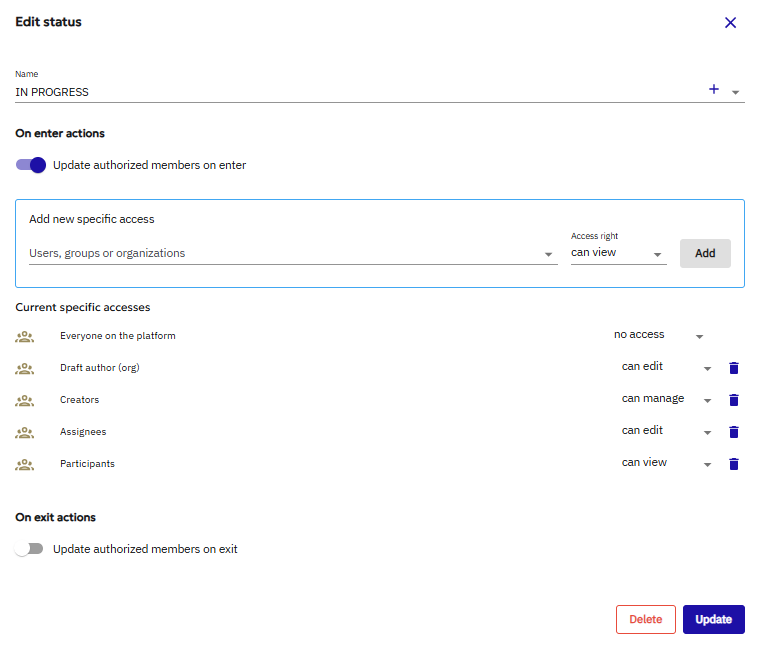
When triggering an action on a status, you can decide whether to apply it when entering or exiting the status.
On enter: apply authorized members
Like transitions, you can apply authorized members when entering a status.
On exit: apply authorized members
Like transitions, you can apply authorized members when exiting a status.
Editing a workflow: ease of use capabilities
Restore published workflow
When working on a worfklow definition, you might have deleted a workflow status that is already existing and used by some specific draft instance, preventing you to publish this version. As a result, you might need to go back to the published version, so that you can restart the worfklow edition, with a version that is currently working.
Simply click on Restore the current version & validate on the pop up to go back to this version
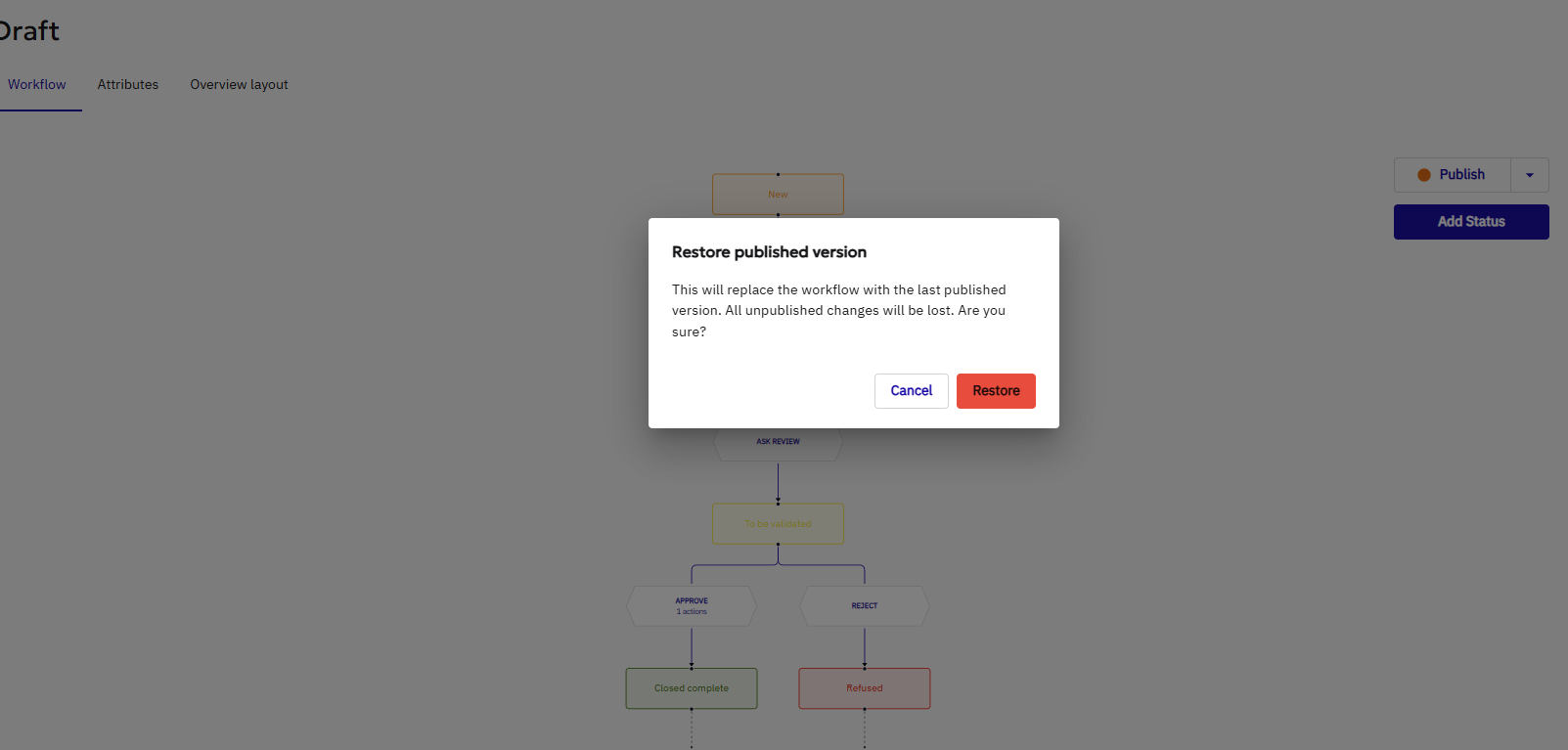
Reset workflow
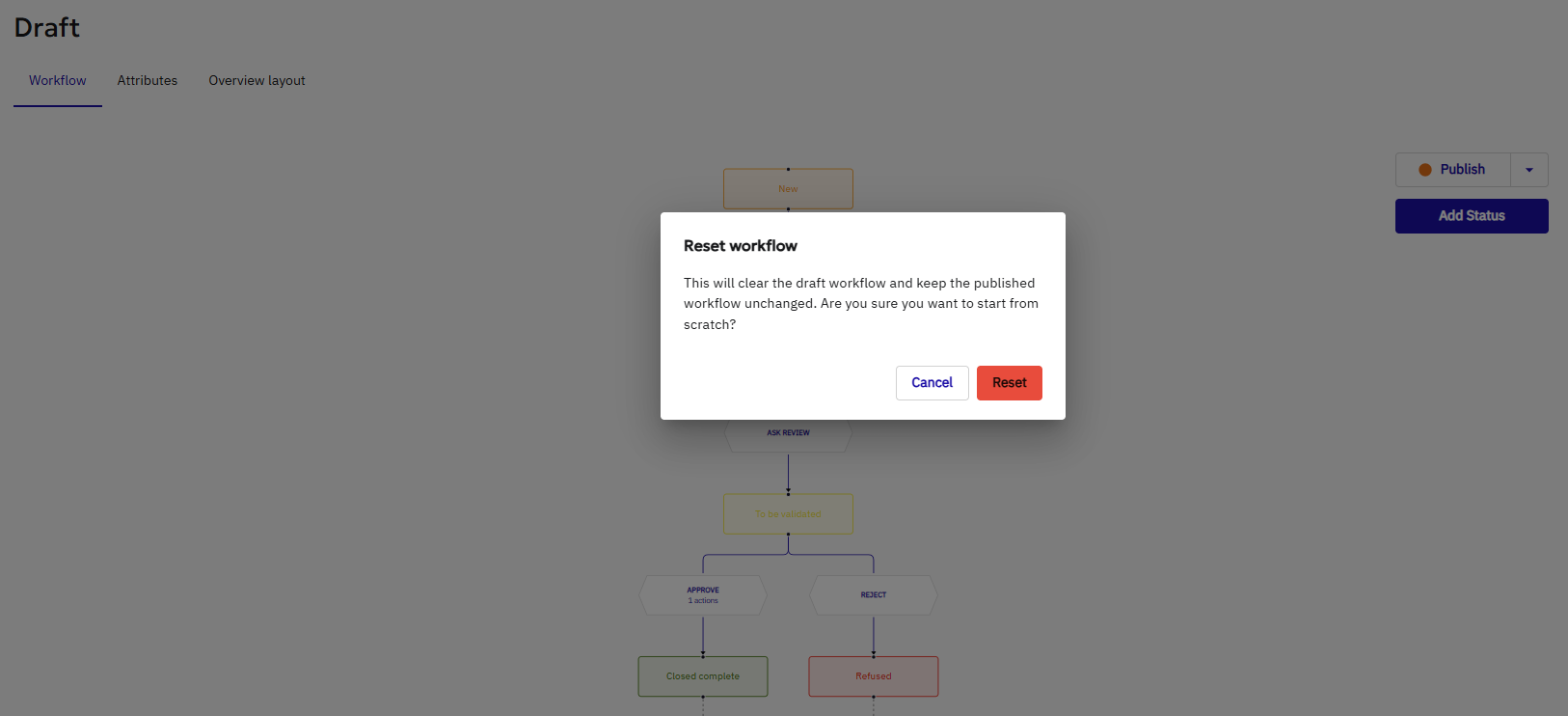
When working on a worfklow definition, you might want to restart from scratch. Therefore, click on reset worfklow: it will remove all the worfklow definition.
Resetting a worfklow does not publish it: it is simply a shortcut to restart your definition from scratch, but the published version is still the one you published before.
As a reminder, you cannot publish a workflow that does not contain some statuses that are used in some draft instances.
Issues and troubleshooting
Issue happening on action
When an issue occurs with an action, especially a share-to-organization action, the action may fail for several reasons. In that case, the UI will display an indication so the user can reset the action and return to the previous status.
Issue with workflow definition design
Additionally, if some users are blocked by a misconfigured workflow, you can add a transition to another status that is restricted to a subset of users so they can be unblocked as well.
User in charge of validating the draft does not have the capability to validate the draft
If the transition leading to draft validation has conditions on who can trigger it, it is still important to remember that the user must also have the ability to validate a draft. The user must have the Delete knowledge capability in the main context to be able to validate a draft.