Authorized members
Enterprise edition
Authorized members on Entities are under the "OpenCTI Enterprise Edition" license. Please read the information below to have all the information.
Authorized members allow to restrict access to an entity to certain users, groups, or organizations within the platform.
There are two variations of Authorized Members, under different licenses:
| Variation | Applies to | License | Purpose |
|---|---|---|---|
| On workspaces | Custom dashboards, Investigations | Community Edition | By default, only the creator of a workspace has access to it. Authorized members let you share it with other users to collaborate on it. |
| On entities | Feedbacks, Reports, Groupings, Incident responses, Requests for information, Organizations | Enterprise Edition | By default, any user with the right markings (and the right organization, with organization segregation) can access an entity. Authorized members restrict access to a subset of these users. |
Authorized members on entities are mainly useful with organization segregation: when an entity is shared with a whole organization, they let you make it visible to only some users of that organization.
Four levels of access are available:
- View: read-only access to the entity.
- Edit: view and modify the entity.
- Manage: view, modify, delete, and administer access to the entity.
- Can use: use the entity to mention it as an author (specifically useful for the Organization entity type)
Once authorized members are defined, they will be the only ones with access to the entity. To prevent the creation of "ghost" entities that are only accessible in read-only mode without the ability to delete them, it is mandatory to define an administrator. If you attempt to define authorized members without an admin, an error message will be displayed.
Authorized members are available at multiple levels within the platform:
- Custom Dashboards
- Investigations
- Feedbacks
- Reports
- Groupings
- Incident Response
- Request for Information
- Request for Takedown
- Organizations
Set up authorized members
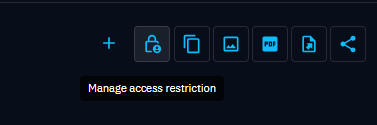
To define authorized members, you need to click on the 'Manage Access Restriction' button. This button is visible if you have the 'Manage Authorized Members' capability.
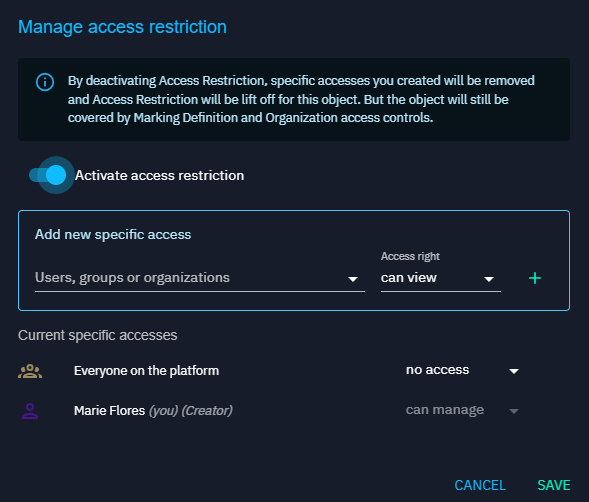
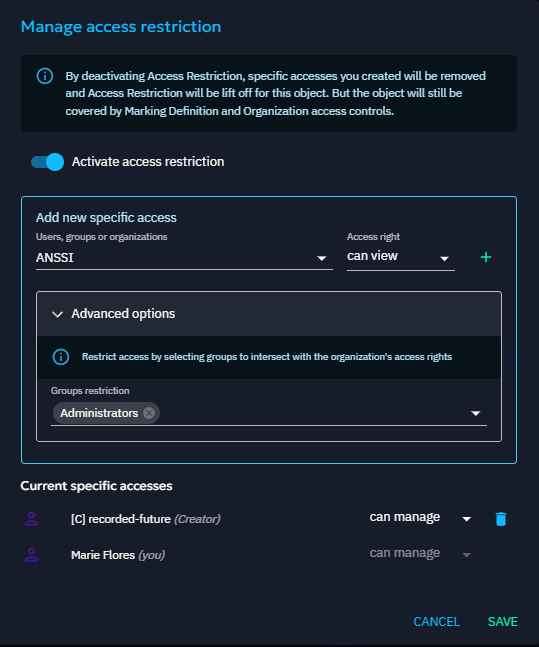
If you grant access to users belonging to an Organization, you can restrict access even more specifically to users belonging to one or more groups, in order to provide more granularity in access control.
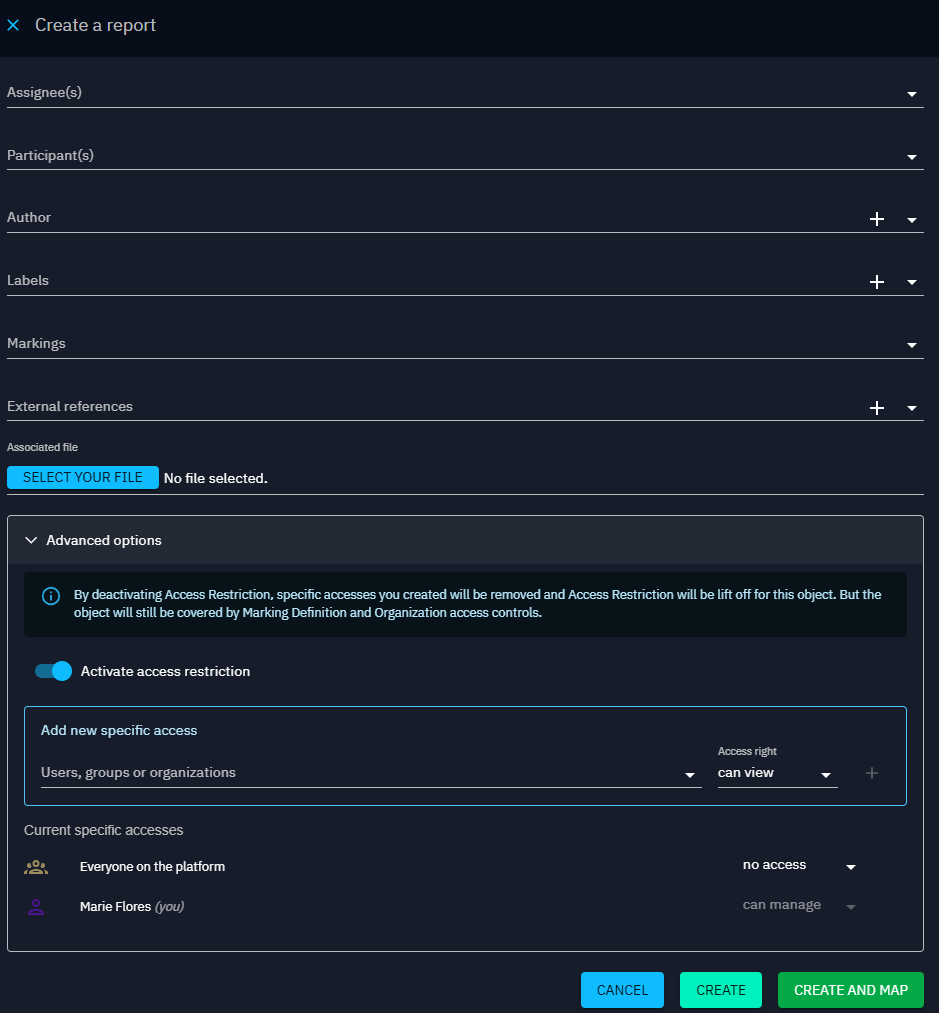
For the containers Report, Grouping, and Incident Response, as well as Case RFT and Case RFI, it is possible to define authorized members directly when creating the entity.
Administrate restricted entities
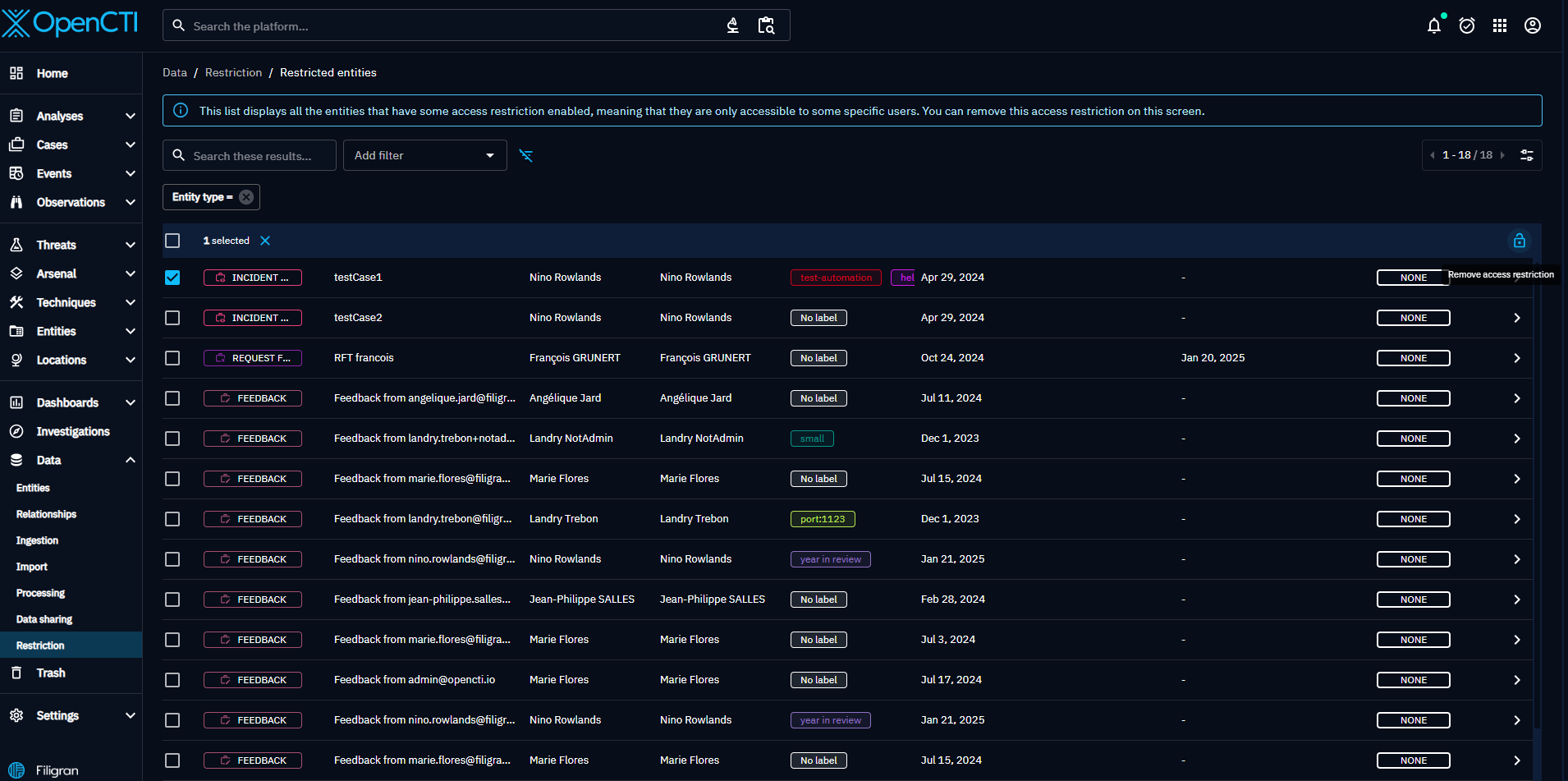
It is possible to access the list of entities restricted by authorized members via the 'Data > Restrictions' tab. This tab is accessible to a platform administrator with the 'Bypass' capability, ensuring that all entities with authorized members are listed without any restriction. Through this tab, it is possible to view the entities restricted by authorized members as well as additional information, such as the date when authorized members were activated. The administrator can also choose to remove the restriction by clicking on the 'Remove Access Restriction' padlock.
Authorized members and organization segregation
Enterprise edition
Platform segregation by organization is available under the "OpenCTI Enterprise Edition" license. Please read the dedicated page to have all the information.
For certain container Reports, Groupings, Incident Response, Case RFI, and Case RFT when segregation by organization is enabled and the container is shared with an organization, it is possible to define authorized members to further restrict access to these members who do not belong to the organization.
This restriction will only apply to the container and will not cascade to the entities contained within the container.
Once authorized members are activated for these entities, data segregation by organization is disabled for that specific entity. Only the authorized members will have access to the entity, and the 'Share with an organization' button in the interface is deactivated.

Specific case of Authorized Members on Organization in the context of Organization segregation.
In the context of Organization segregation, sometimes, as a Platform Organization, you do not want users to see all the organizations that exist in your database. For this reason, you can set Authorized Members on Organizations:
- A user with Can View will be able to see the organization in the knowledge list & security view. As a result, if the organization is in the Author field of an entity, or in the shared organization that the entity is shared with, the user will see the organization.
- A user with Can Edit will be able to edit the organization (and see the organization).
- A user with Can Manage will be able to manage access restrictions on this organization.
Authorized Members of the organization will allow you to control who can see & manage the list of organizations present in your platform.